Fraud and Verifications
Fraud is a common problem with Ecommerce. SoftSlate Cloud Platform provides some tools to help you identify whether or not each incoming order is fraudulent.
Here are the topics covered in this document:
Verifications Section of the Customer Service FormPrior OrdersVerification ChecksLinks for ResearchKnown FraudstersMaintaining a List of Known FraudstersFraudster Check During CheckoutFraudster Notifications When Orders Are Placed
Verifications Section of the Customer Service Form
The main Customer Service Form for each order is accessed by clicking into an order from the Customer Service Dashboard.
One of the sections of the customer service form screen is called "Verifications". It's intended to help employees decide if the order is fraudulant and should be cancelled, or if it's valid and should be fulfilled:

Prior Orders
The first part of the Verifications section shows any prior orders that match the current order. Depending on the number and status of prior orders, the information can help you determine if the current customer is trustworthy or not. The system performs queries to search for prior orders in the following ways:
By Email: Tests if the current order's billing or delivery email matches a prior order's billing or delivery email address.
By Phone: Tests if the current order's billing or delivery phone matches a prior order's billing or delivery phone number.
By First and Last Name: Tests the combination of the billing first and last name, and delivery first and last name, against prior orders' billing and delivery first and last names.
By Address and City: Tests the combination of the billing city and address1 fields, and delivery city and address1 fields, against prior orders' billing and delivery city and address1 fields.
Verification Checks
The middle part of the Verification section makes a variety of other verification/fraud checks for the current order:
Failed payments: if the customer attempted to use multiple credit cards to pay for the order, the number of Failed payments is shown. This can be a good indicator that the user is potentially fraudulant. For more details on each of the failed payments, employees can click into the "Payments and Totals" section further below on the customer service form.
Credit Card Address, Credit Card CVV Code: If the customer paid with a credit card and the responses are available from the processor, the AVS and CVV responses are shown here. Click the ? icon for what the code means. Note: for Authorize.net, it is also possilbe to use their fraud detection suite to automatically reject payments that return different codes.
Billing/Delivery Check: This is a simple check as to whether or not the customer chose to use the same address for billing versus delivery. Using a different billing address could be a sign the user is using a stolen credit card and the order is fraudulant.
Expensive Check: This indicates that the order is considered "expensive" and extra care should be taken. This flag appears in red if the order has one or more items whose corresponding product's "Is Expensive" field is enabled. You can maintain this field for each product in the Product Catalog -> Products section of the administrator.
Matching Fraudsters: This area displays any entries from the store's internal list of Fraudsters (see below).
Links for Research
The last part of the Verification section displays a number of links going to trusted internet resources, allowing you to look up public information about the customer's name, address, IP address, email address, and phone. These links can be a handy way to find out more information about the customer, which can help you make a judgement about whether the order is fraudulant.
Known Fraudsters
Maintaining a List of Known Fraudsters
SCP allows employees to maintain a list of names and addresses of people who are known to have committed or attempted fraud. This list is checked on the Verfications section of every incoming order (see above). If there is a match, it is highlighted in red on the screen, indicating you should treat the order as fraudulent.
To add people to the list of known Fraudsters, click into Operations -> Fraudsters. Click the plus icon to add a new entry to the list. You can also import entries, search, filter, and export, as you can on any of the other Administrator Grid Screens.

Fraudster Check During Checkout
SCP can check the list of known fraudsters as each customer enters their address during checkout. To enable this function, go to the Settings -> Checkout screen, and enable it under the "Fraud Settings" section:
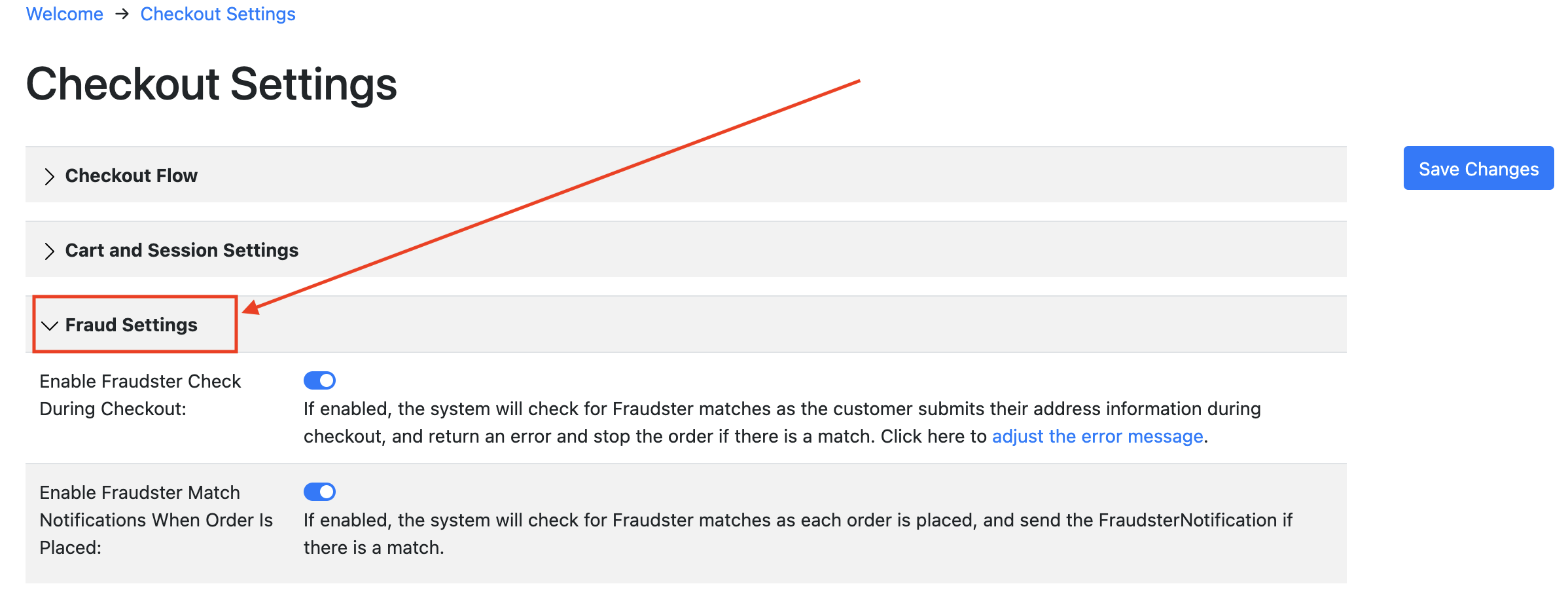
If there is a match during checkout, the system shows an error to the customer and they cannot proceed to place the order:
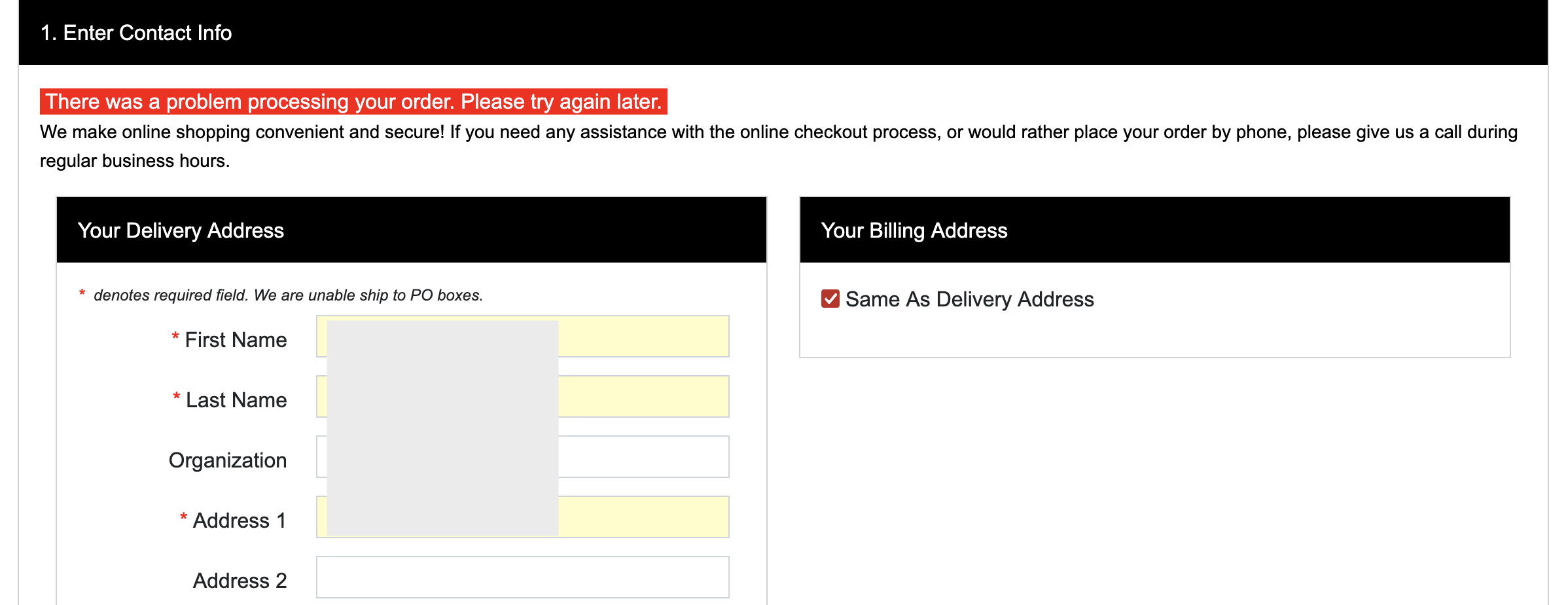
At the same time, the Fraud List Match flag is set on the order. You can use this flag to search and view matching orders (including for incomplete orders) from the Order grid screen.
Fraudster Notifications When Orders Are Placed
Another option for the fraudster list is to allow orders to be placed and have the system send a notification to employees that there was a match. To enable this option, select "Enable Fraudster Match Notifications When Order Is Placed" from the same Checkout Settings screen. As an order is placed, the system will check for matching fraudsters and send an email. You can manipulate the notification by adjusting the "Fraudster Notification" from the Notifications area of the administrator:
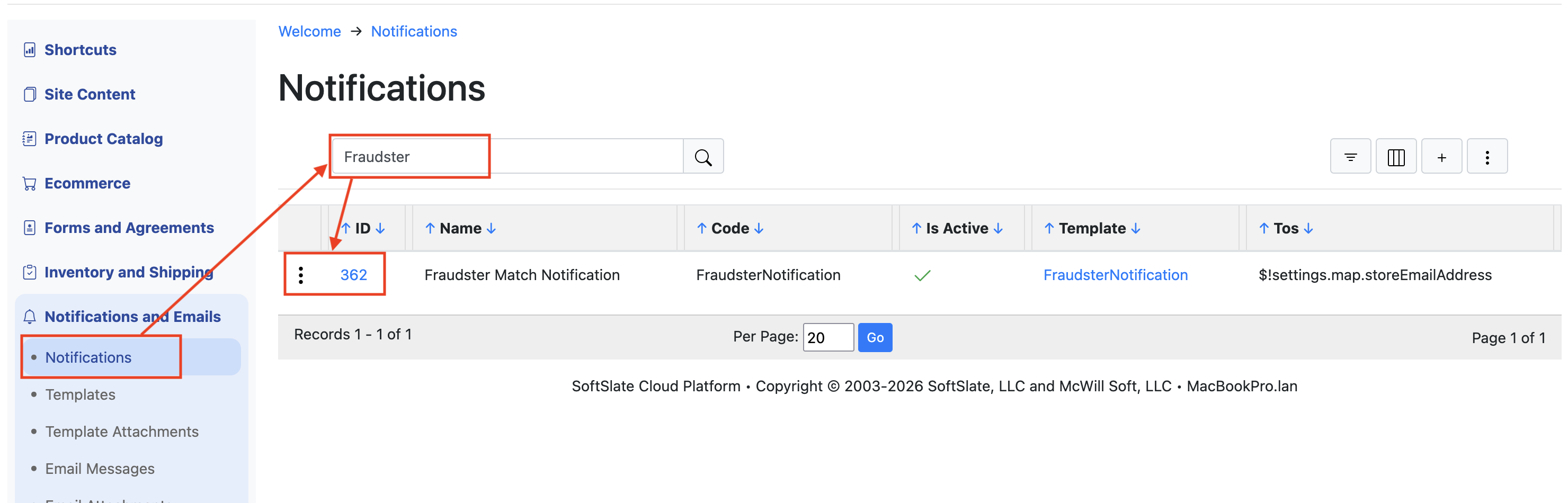
By default the notification goes to the store's email address configured under the Email Settings screen, and it lists the reason for the match and other information on next steps to take.