Multi-Language Support
SCP offers robust multi-lingual support for sites with users who speak different languages.
Built-in Translations vs. Browser-Based Real-Time TranslationsUsabilityAccuracyFormattingEnabling SCP Language OptionsIdentifying Your Supported LanguagesLanguage Selection DropdownAdding Your Translated TextSite LabelsProduct Catalog DataList of Translatable Product Catalog Fields
Built-in Translations vs. Browser-Based Real-Time Translations
Most modern browsers have the ability to translate webpages for you, and this is a viable option if you need multi-language support. The main advantage is simply convenience - as a website author, you don't have to do anything. The browser will detect if the user is visiting a page that uses a language they have not identified as their preferred language, and offer to translate it for them.
There are a few advantages, however, to using the built-in multi-language support in SCP you should also consider:
Usability
SCP Language Features:
The user usually has to do nothing and they will immediately see the site's text displayed in their preferred language. By default SCP will detect each user's language preference automatically, and show them the translated text immediately (if you have configured the language and translations in SCP).
In addition, users have the option to choose the language deliberately via a menu in the header.
Browser Translations:
Note: the following describes major browser translation behavior as of this writing.
Android (Chrome): By default Chrome will popup a very obvious prompt at the top of each page, asking the user if they want the page to be translated. But by default they must do this on every page. If the user knows how to, they can also go into settings and tell Chrome to automatically translate each page (without showing the popup), but this is not the default setting.
Iphone (Safari): By default Safari presents an icon on the address bar ("Aa") and if you click it, you can tell it to translate the page. It looks like this prompt is a little less obvious than Chrome's. NOTE: There is NO way to tell it to automatically translate the pages as they are loading. The user has to click the button to tell Safari to translate each page.
Browser translations rely on the user's browser settings indicating that they prefer another language. If that is not set, or not set correctly, the translation options won't appear at all.
Accuracy
SCP Language Features:
You have complete control over the translations. Especially if your site uses unsual or technical terminology, this can be a big advantage.
Browser Translations:
According to this article the Chrome translations into Spanish (Google Translate) are 90% accurate: https://localizejs.com/articles/the-pros-cons-of-using-google-translate-for-your-website
Formatting
SCP Language Features:
You have complete control over the formatting of the translations. If there are overflow or other issues, you can address them by adding styles or markup to the translations.
Browser Translations:
Browser-based translation text looks pretty good on the page overall, but for example it has trouble with the trademark symbol. It "translates" the symbol as "TM" but puts it in the same font size as the other text (it doesn't show it as superscript).
You do not have any control over the markup or styling of the translated text that the browsers introduce to the page.
Enabling SCP Language Options
Identifying Your Supported Languages
To enable multi-language support in SCP, start by defining the different languages you wish to support. Do this from the Advanced Settings Screen's "Language Options" setting. Enter the two-letter international code for each of the languages you plan to support:
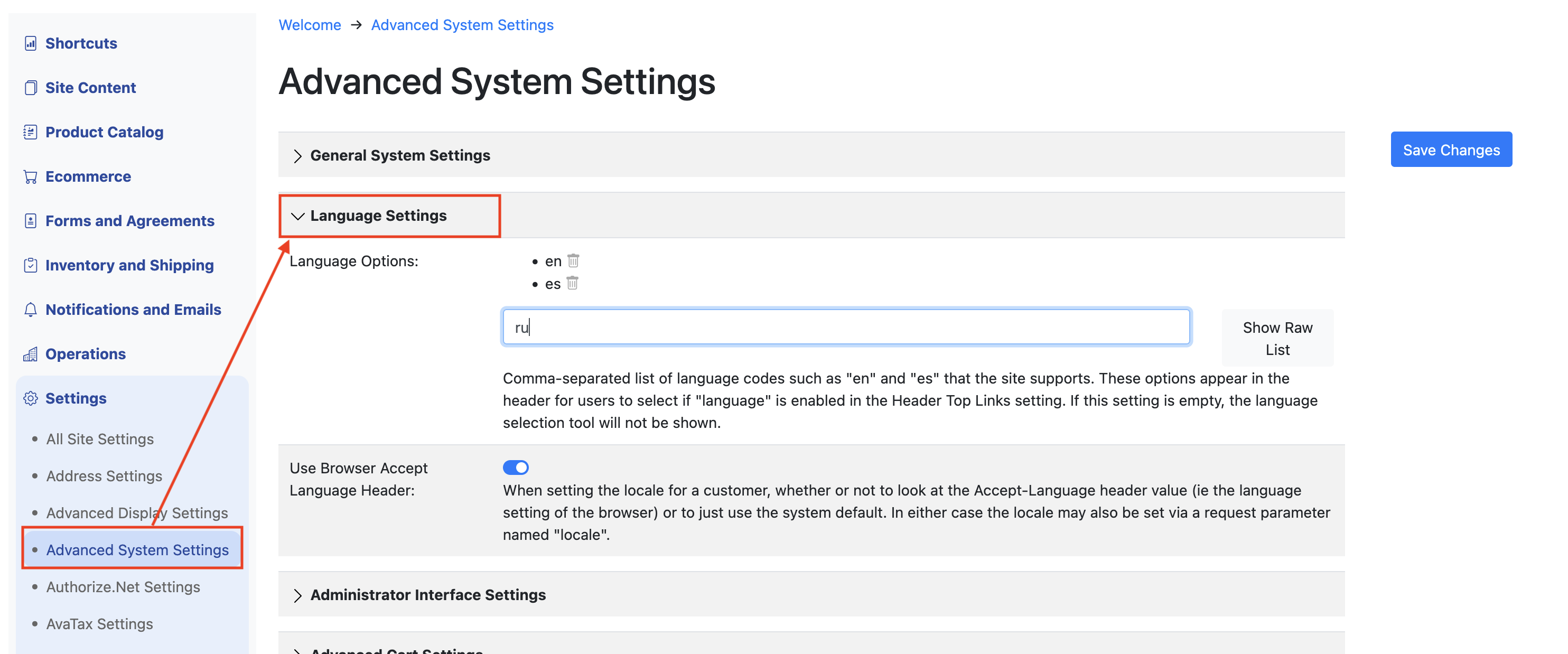
Note: By default, the system will detect the language preference for each user via the "Accept-Language" browser request header. In other words, it will use the language preference the user has defined in their own browser settings.
Language Selection Dropdown
Many times the user may have an incorrect browser preference setting, or they may be using someone else's browser to access your site. In these cases, it's also a good idea to enable the Language selection dropdown in SCP. You can add this dropdown by checking off the "language" option in the "Header Top Links" setting found on the Display Settings screen:
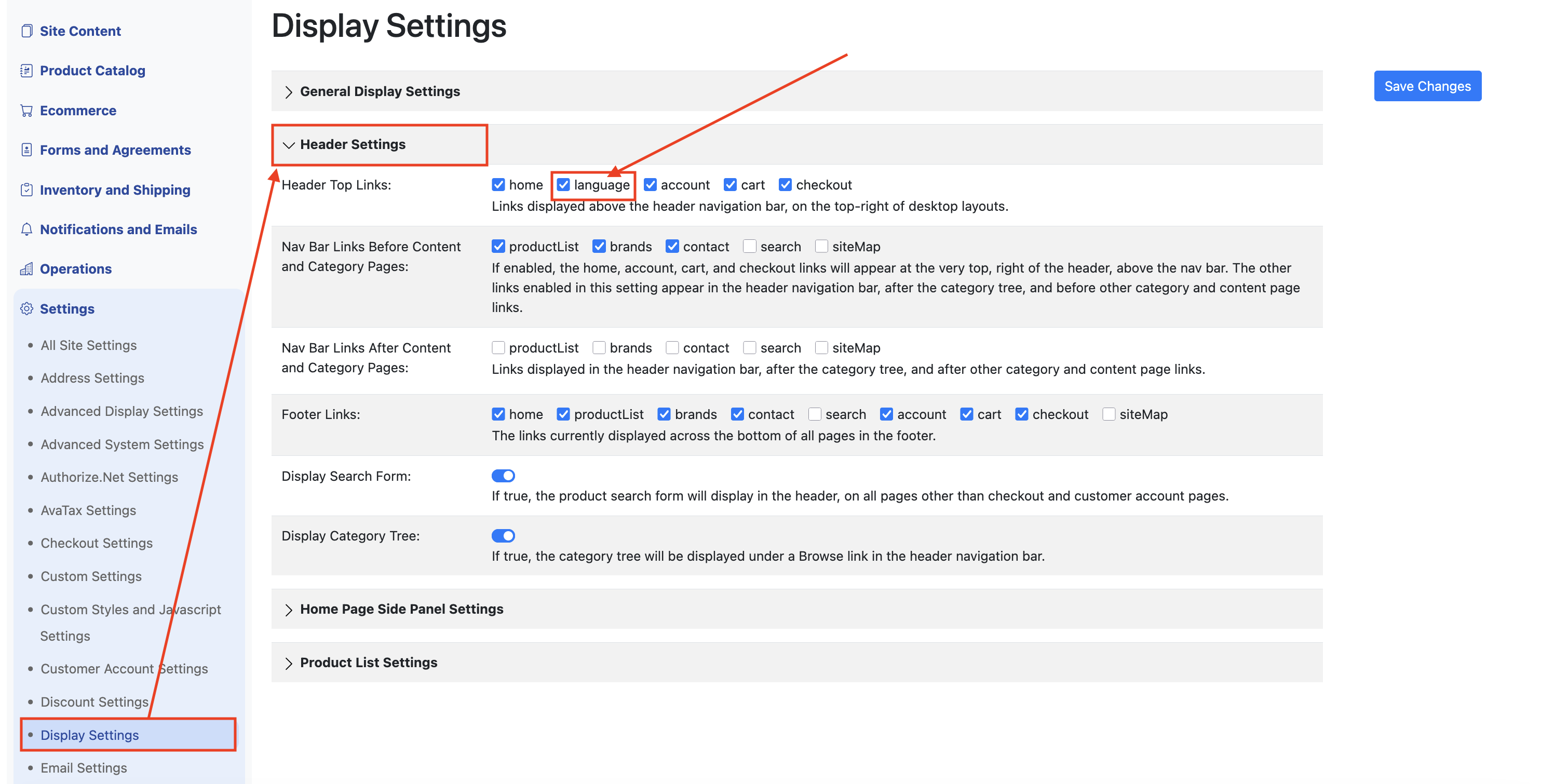
Enabling that option will tell the system to display a globe icon in the site's header, allowing the customer to choose from the language options you have configured:

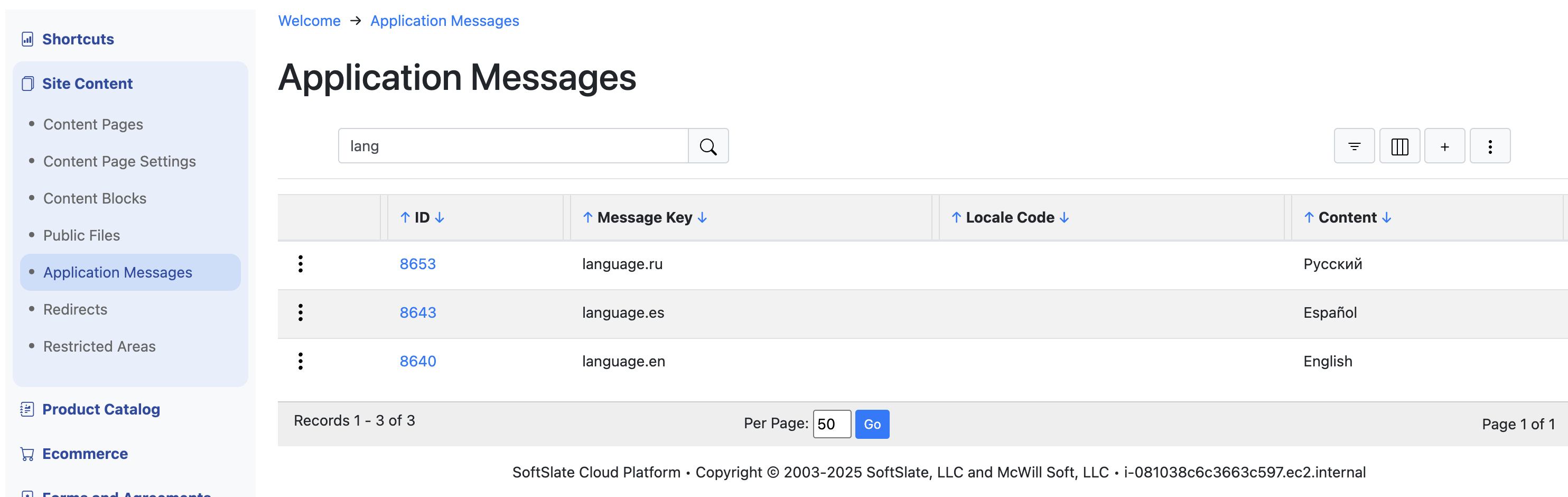
To set the name of the language that appears in the dropdown menu, create a new Application Message. The message key should be in the form of "language.
Adding Your Translated Text
Site Labels
Various places in the customer interface render labels to help customers navigate and perform actions. For example, by default the English phrase "Add To Cart" is rendered on a button customers use to add items to their cart. You can add translations of each label in any number of other languages you wish to support, and this is done through the system's Application Messages. (Note: the default, English version of all of these labels can also be customized by simply editing the default application messages.)
To continue with our example of "Add To Cart", let's add a Spanish translation of that phrase to the system:
Navigate to Site Content -> Application Messages.
Start by find the "message key" for the default application message. In this example, we'll do a search for "cart" to find it:
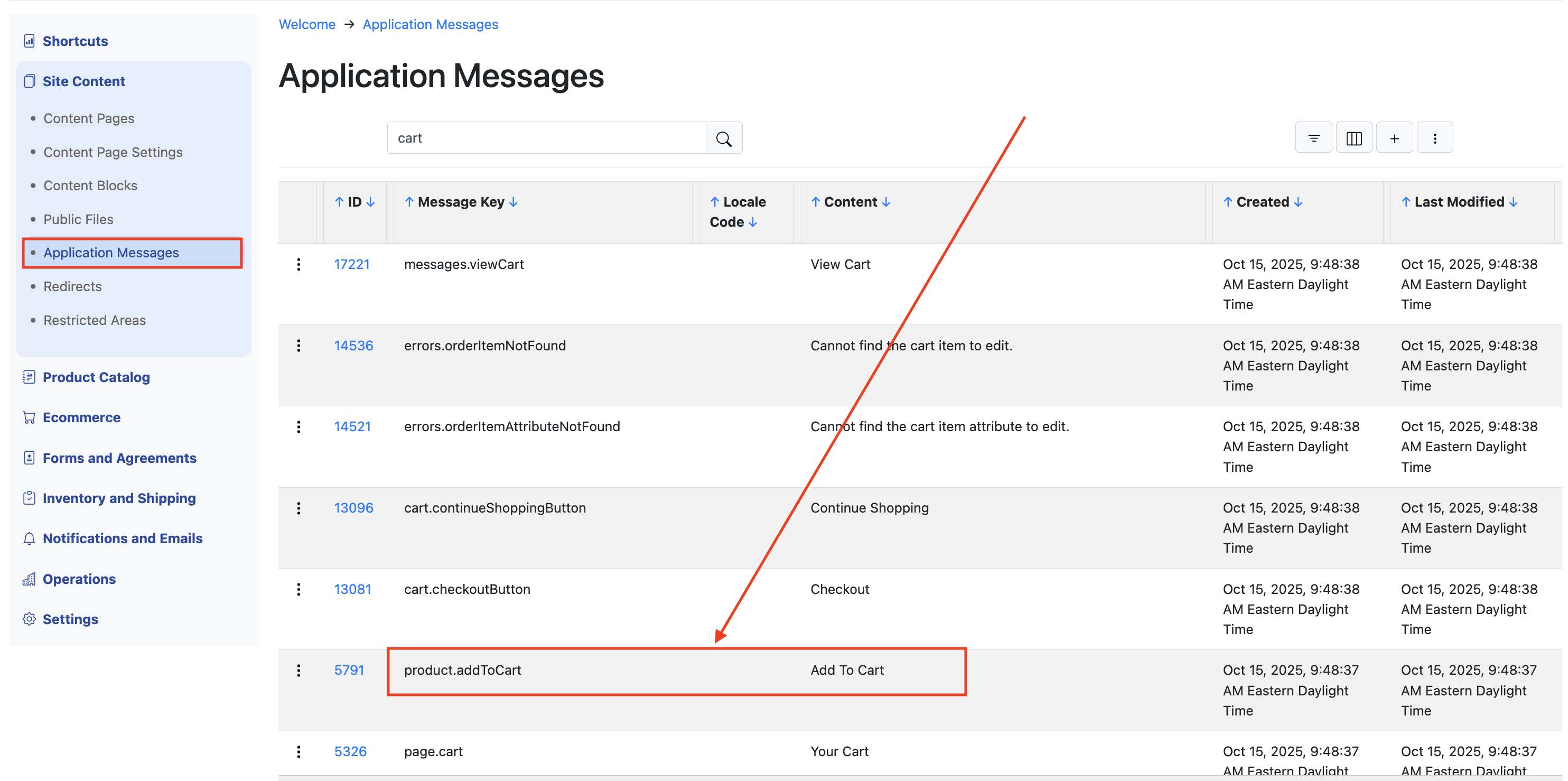
From the above search we know that the message key for the phrase "Add To Cart" is "product.addToCart".
To translate the phrase into another language, simply add a new Application Message. Click the plus icon.
Use the same message key for the translation. In our example, use "product.addToCart". For the "locale code", enter the two-letter code for the language. In our case "es" for Spanish. And enter the translation itself in to the "content" field:
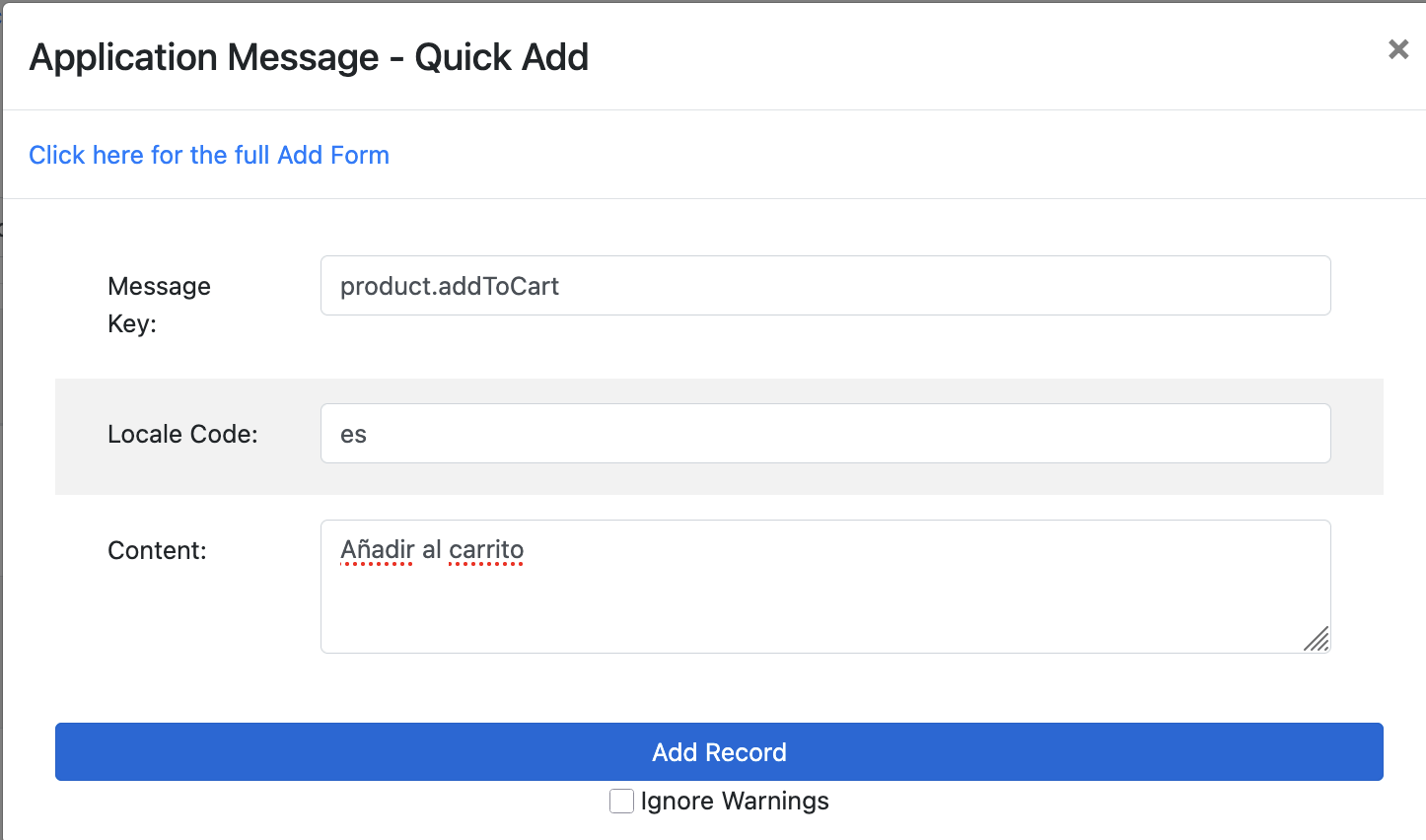
Click Add Record. After a few minutes, the translation should be in effect for users who choose Spanish from the language drop down, or whose browser preferences are set for Spanish.
In a similar way, you can execute a complete translation of all the site's labels, into any language you wish, and into multiple languages. For each language you wish to support, add new application messages whose locale codes correspond to each language code.
Note: If an application message does not exist for the user's chosen or preferred language, the system falls back to the default application message. This is the one in the system that is has an empty "locale code" field. Having an empty locale code means that message will be used when a language-specific one is not present.
Product Catalog Data
The labels used in the customer interface are one thing, but to create a genuine experience, the names and descriptions of the products, categories, content pages, etc. should also be translated. Fortunately, this is easily accomplished in the administrator interface.
As an example, let's say we have a product named "Test Product" and we wish to make sure it's name is translated for Spanish users everywhere it appears.
Once you have configured the Advanced Settings Screen's "Language Options" setting, you'll see small button links next to the product name field in the administrator corresponding to each language:

Clicking the "es" button takes you to the "Add Application Message" form for that product, and it is prefilled with the locale code and the message key you need to create a translated version. It's all set up for you to add the translation for the product's name:
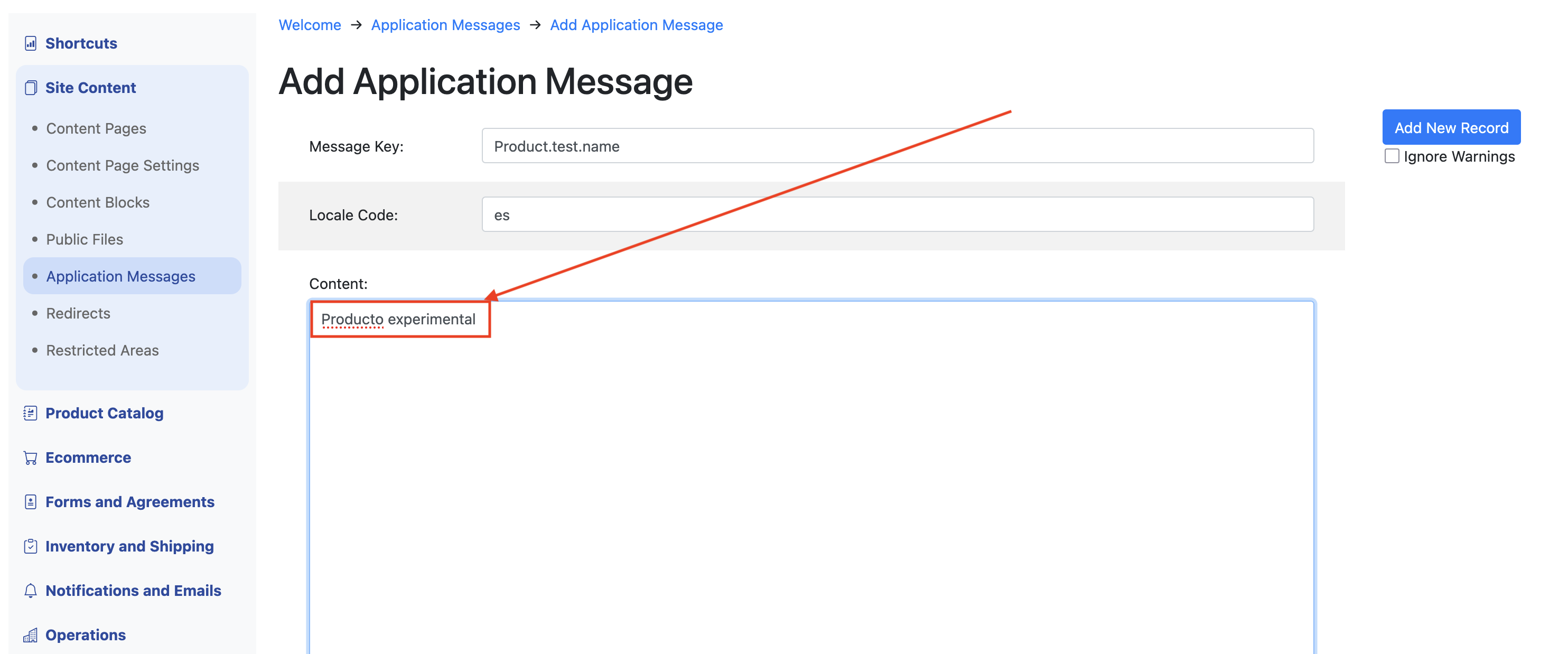
Simply add the translation and click "Add New Record". Within a few minutes, Spanish users will see the translation when they view the product's name in the customer interface.
Later when you click the same "es" button, it will see that you have already entered a translation for that product's name, and it will take you to the same application message, allowing you to edit it:
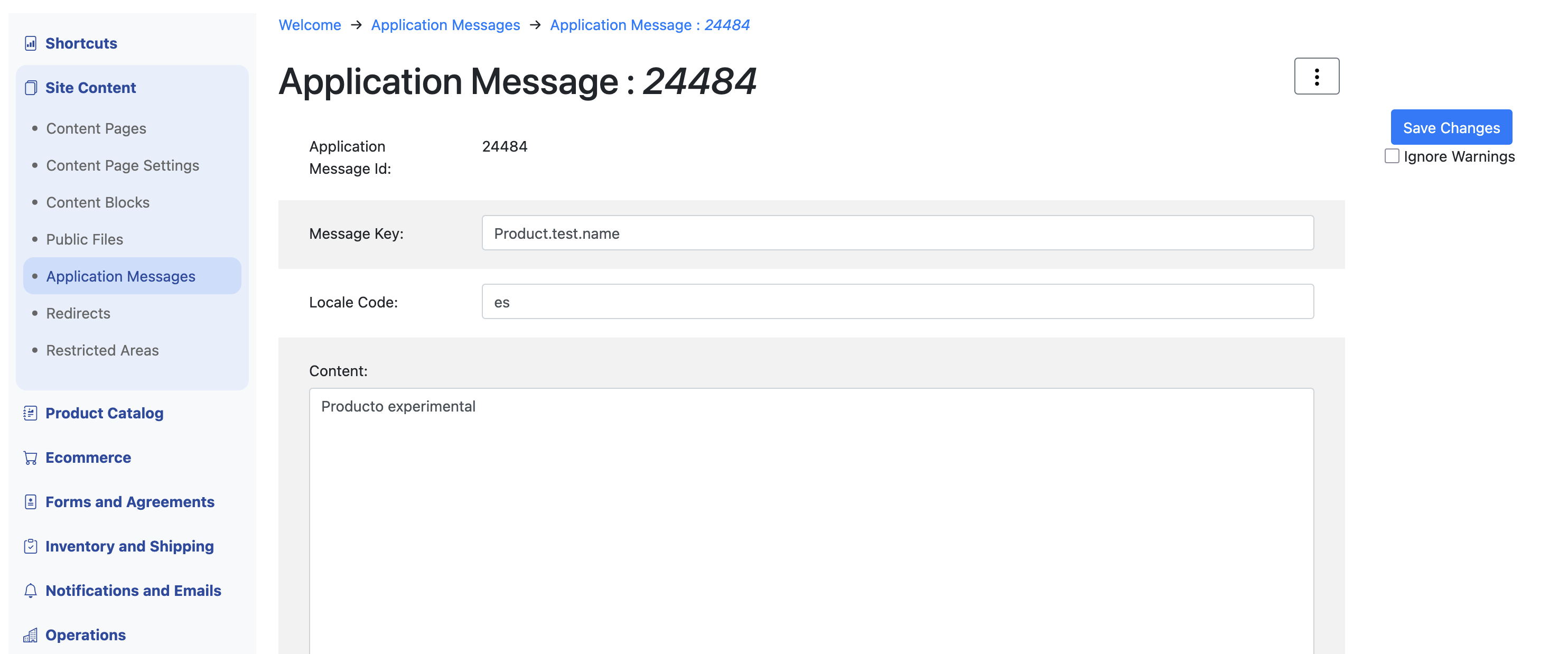
In such a way, you can go through the products in the administrator and add translations, for each of the languages you wish to support.
Note: as with the site labels, if there is no application message present that matches the user's chosen or preferred language, it will fallback. The text that it falls back to is the text in the parent record itself. In other words, for our example above, it will fall back to whatever the name field is in the parent product record ("Test Product").
As a best practice, we suggest you enter your users' most common language in to the parent record, so it is used as a fallback. In this example, we used English for the product's name. Note: when you do this it also eliminates the need to click the "en" button and add application messages in English. You can skip doing that, since the fallback is in English already.
List of Translatable Product Catalog Fields
The following fields in the system can each be overridden with application messages. In most cases, button links for each language will appear next to them in the administraor, allowing you to enter the translation:
| Entity | Field | Message Key Pattern |
|---|---|---|
| Category | name | Category.${category.code}.name |
| Category | description | Category.${category.code}.description |
| Product | name | Product.${product.code}.name |
| Product | description | Product.${product.code}.description |
| Attribute | name | Attribute.${product.code}.${attribute.code}.name |
| Attribute | description | Attribute.${product.code}.${attribute.code}.description |
| Option | name | Option.${product.code}.${attribute.code}.${option.code}.name |
| Option | description | Option.${product.code}.${attribute.code}.${option.code}.description |
| Manufacturer | name | Manufacturer.${manufacturer.code}.name |
| Manufacturer | description | Manufacturer.${manufacturer.code}.description |
| Content page | name | ContentPage.Multi_Language_Support.name |
| Content page | description | ContentPage.Multi_Language_Support.description |
| Product Settings | Custom Tab name | ProductSetting.${product.code}.${settingObject.code}.name |
| Product Settings | Custom Tab content | ProductSetting.${product.code}.${settingObject.code}.settingValue |
| Product Attachments | Image descriptions (captions) | ProductAttachment.${attachment.syncCode}.description |